Mirroring / Prepare a Layout / Remove Mirroring of Devices
- James Yeoh
This article will explain how to Mirror (duplicate), Prepare a Layout (on a Mirrored Device), and Remove the Mirroring on multiple Devices quickly on OnePass.
Topics Covered
Definitions
Every Nano-PC Device has a unique NexSigns License associated with it. Device, Licenses and Displays may be used interchangeably to refer to the individual Device.
Login to OnePass and navigate to your NexSigns Licenses
- Login to OnePass - (For more information, see How to access OnePass)
- Click on Application then select NexSigns
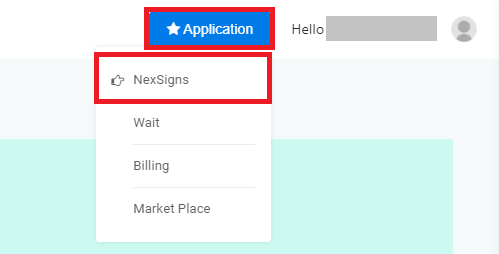
You have successfully navigated to your NexSigns Licenses
This will display all of your Licenses that are NOT currently Mirrored. If you want to view ALL of your Licenses, click on Show Mirrored Licenses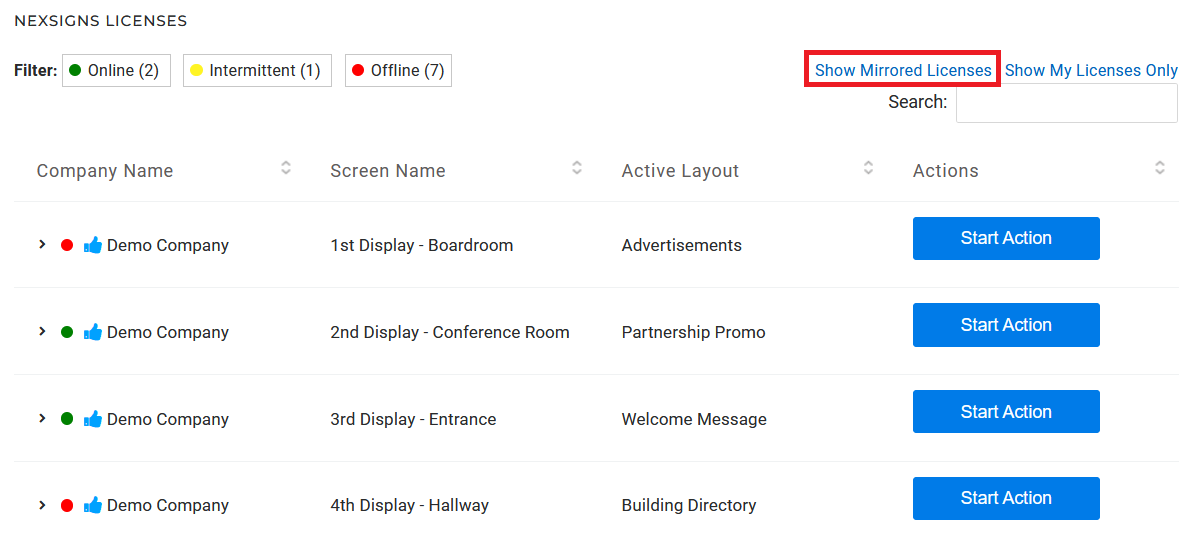
Mirror some Devices to another
This enables users to display the active Layout on the Primary Device, on an unlimited number of Devices, without duplicating and maintaining multiple Layouts.
- Select the Primary Device by clicking on any blank space in the data row
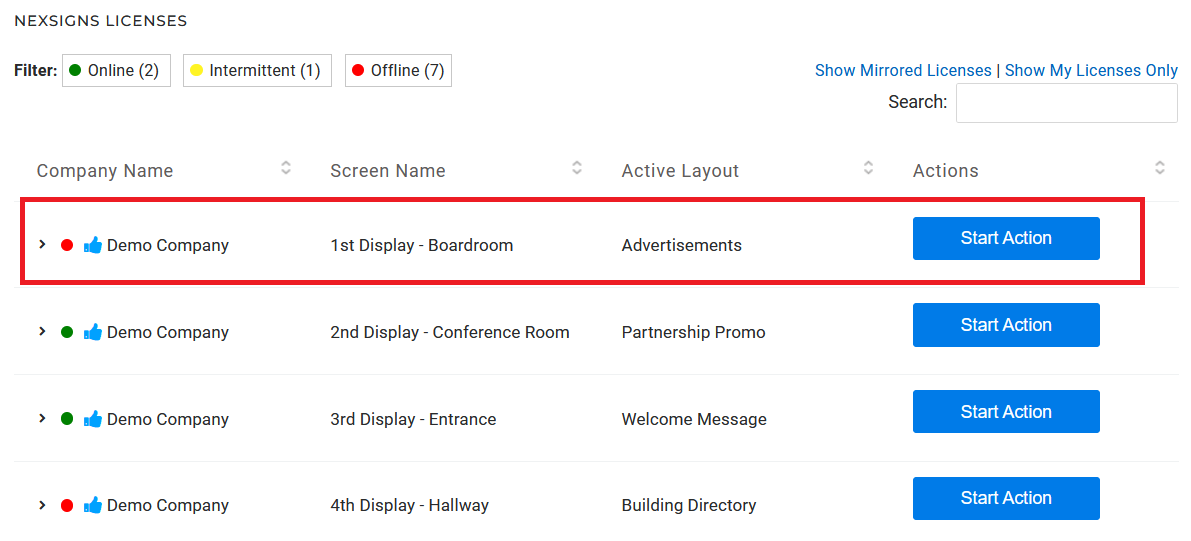
The row will expand and display the details of the Primary Device - Select Mirroring
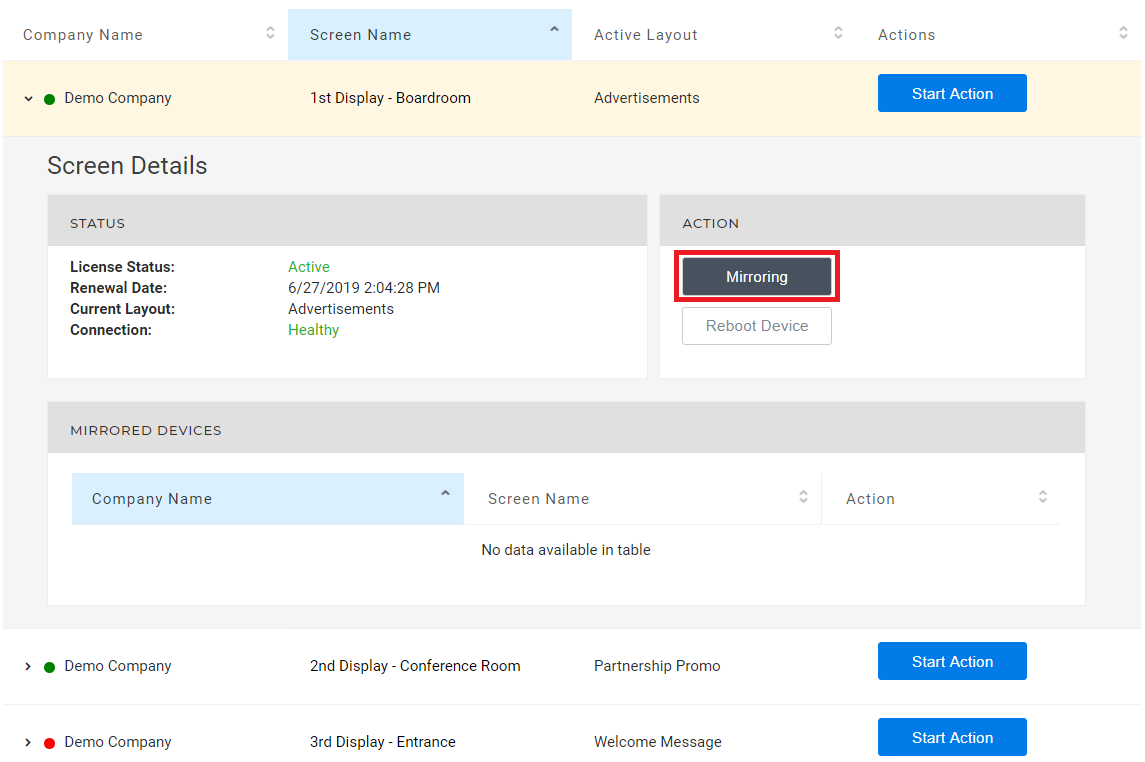
- Select the Devices to Mirror
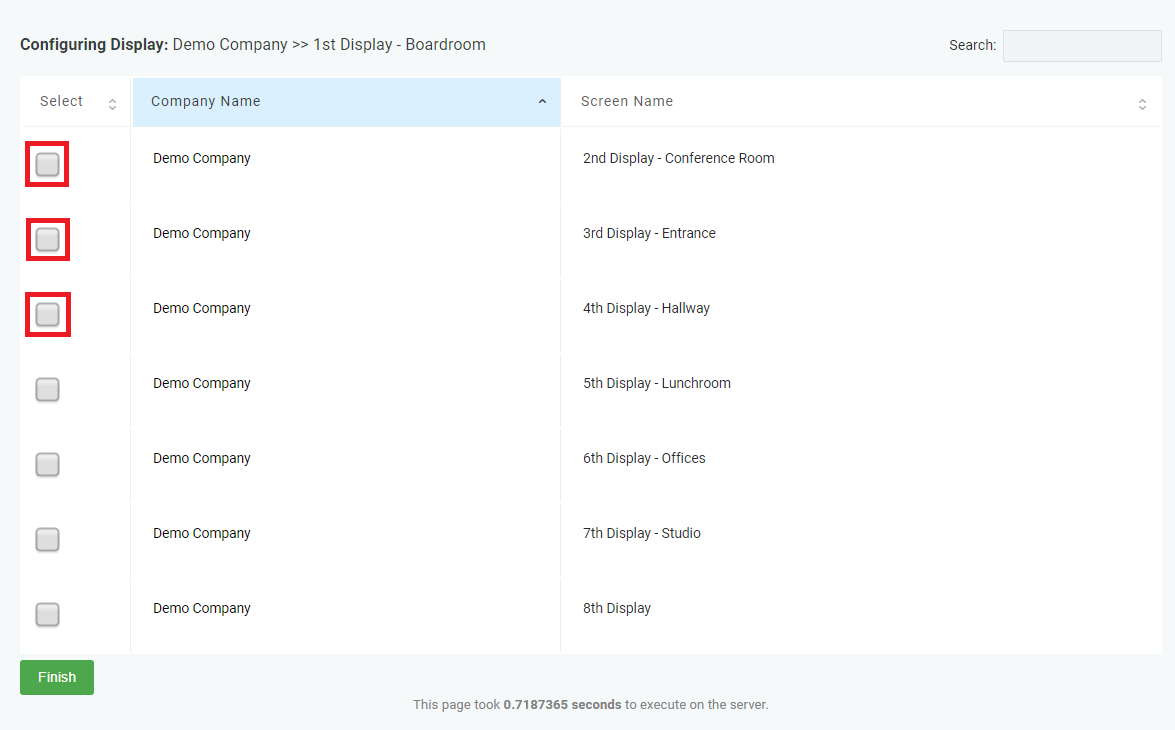
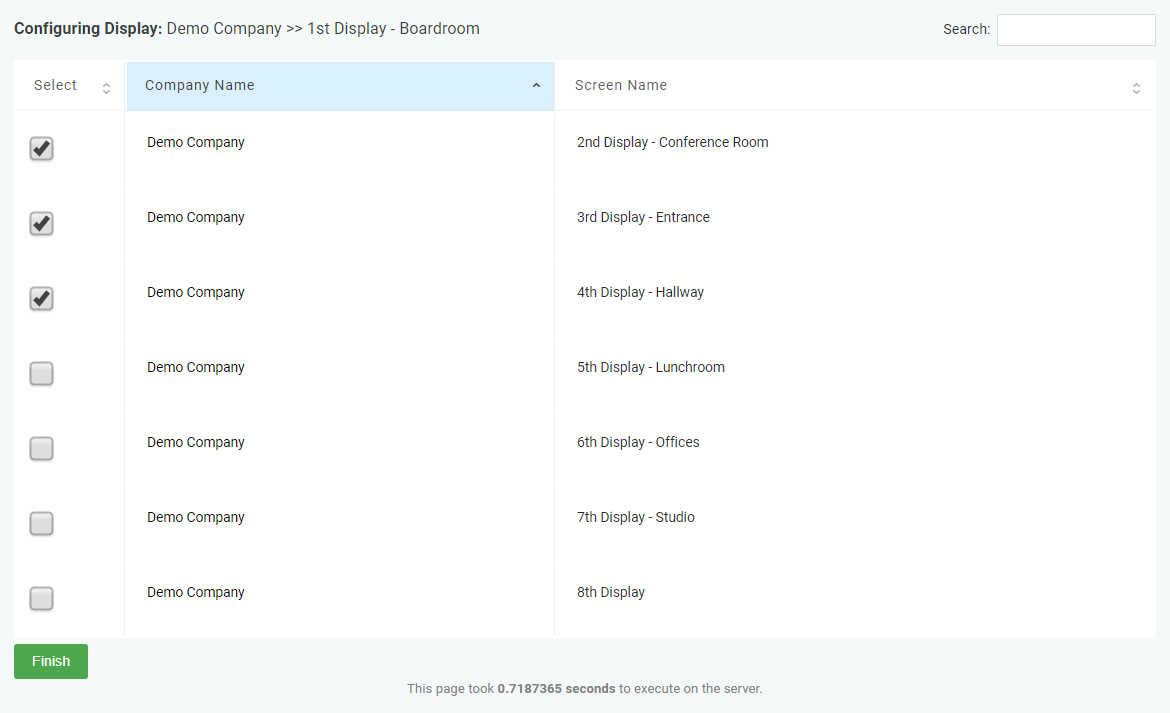
- Click on Finish
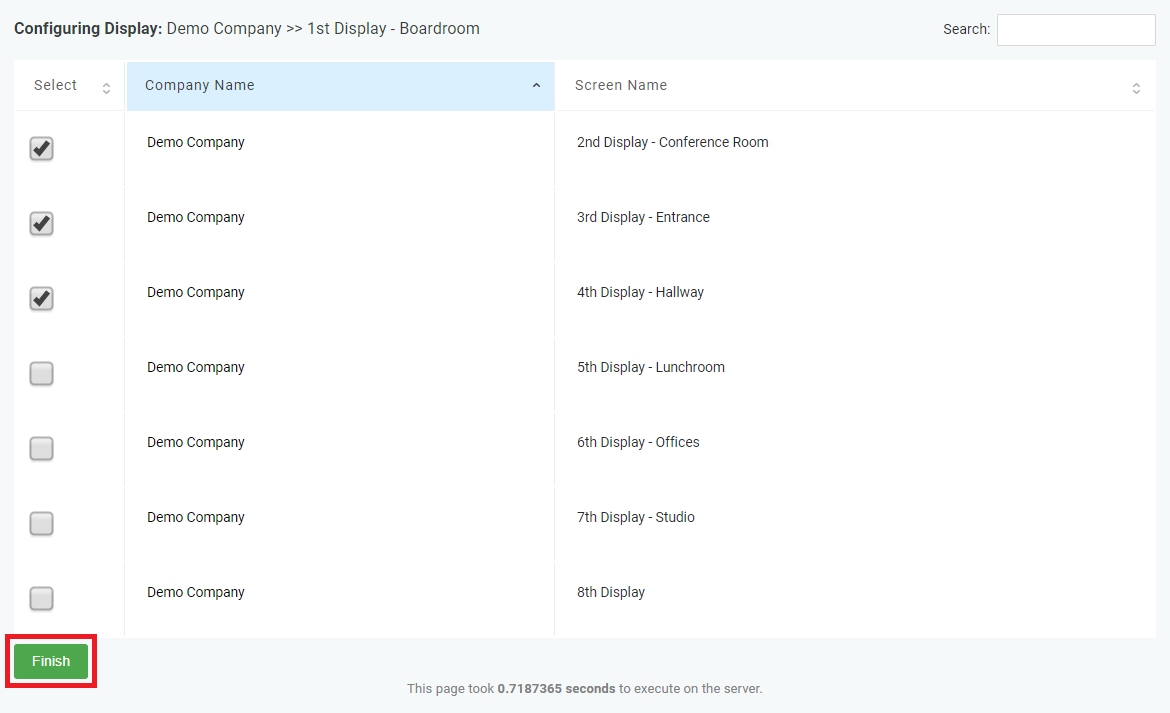
- Mirroring is now complete and the Mirrored Devices will now play the Layout of the Primary Device
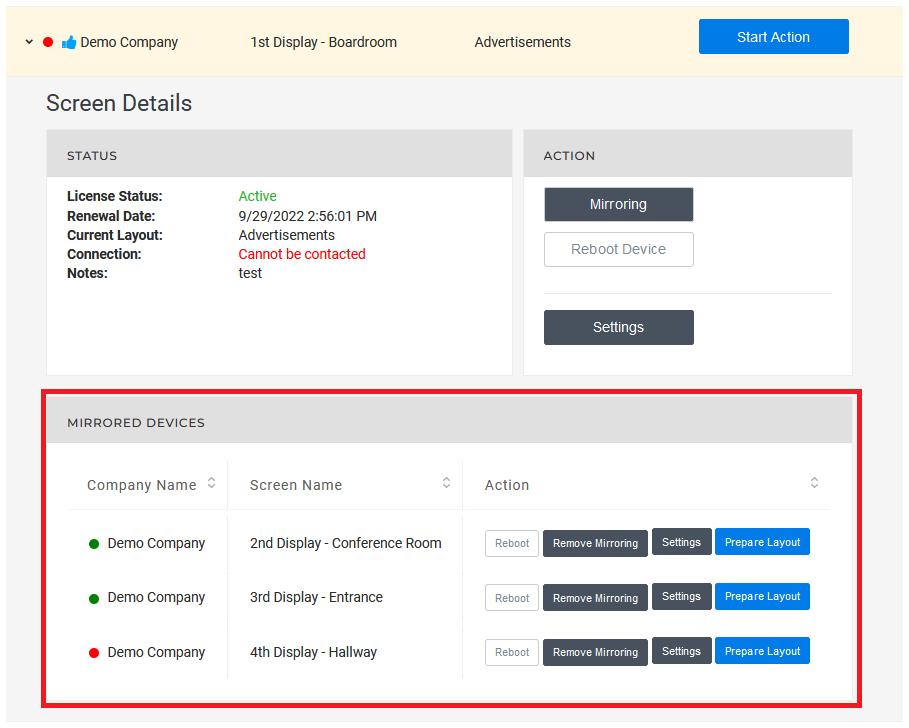
Prepare a Layout and Remove the Mirroring (from the Master License)
For these instructions, the user must know the Master License of the mirrored device. This will allow users to Prepare and Display a unique Layout on the previously Mirrored Device. Once the device mirroring is removed, it will download the Prepared Layout.
Prepare a Layout (From the Master License)
- Navigate to your NexSigns Licenses
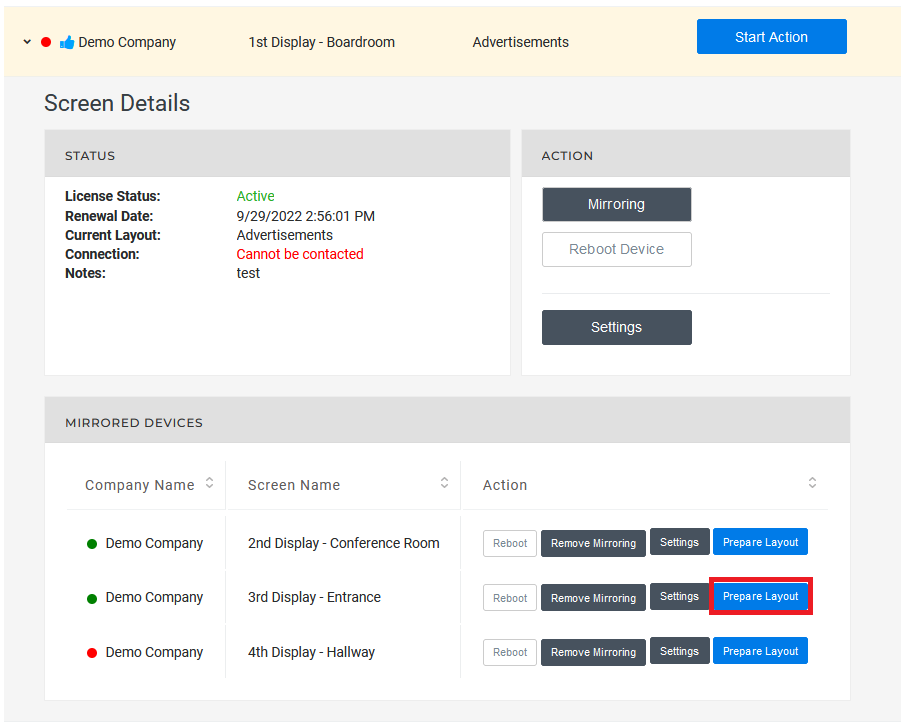
- Select the Primary Device by clicking on any blank space in the data row
- Click on Prepare Layout on your desired Device
Complete the Desired Updates
Helpful Links Create and Publish a Multimedia Playlist Edit and Publish a Multimedia Playlist Create and Publish a NexSigns Template Edit and Publish a NexSigns Template 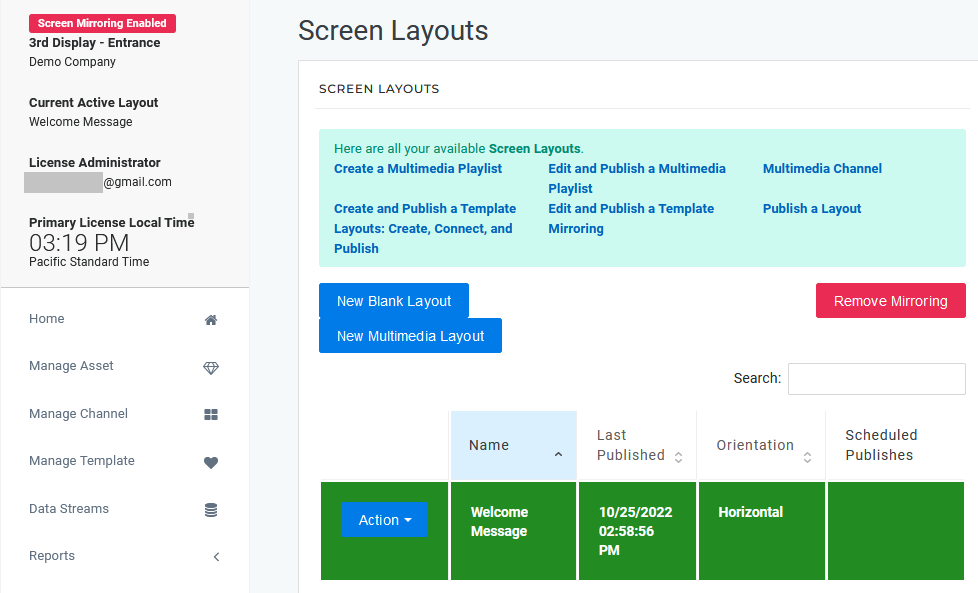
- Publish the Prepared Layout
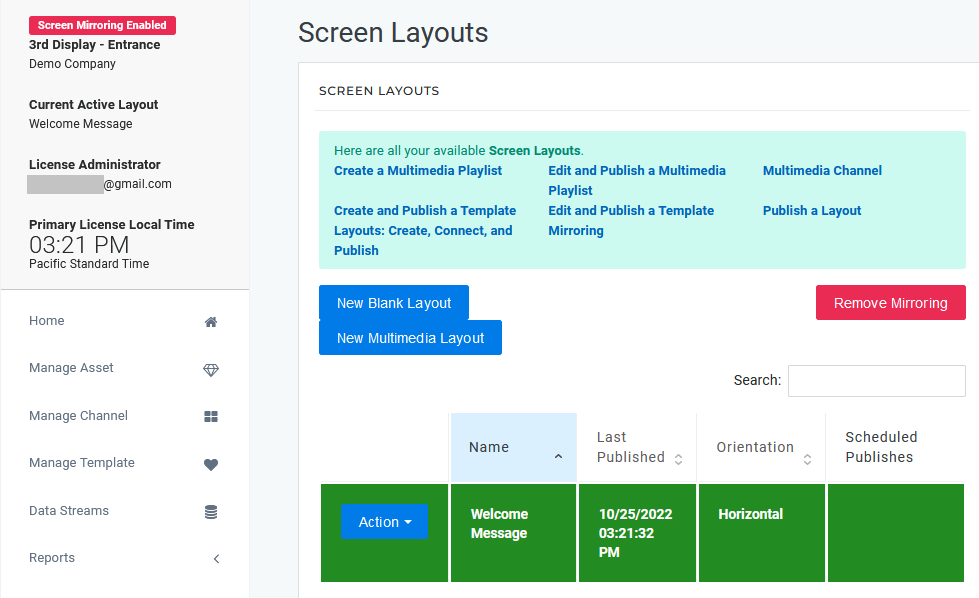
Remove the Mirroring on a Device (from the Master License)
Once the device mirroring is removed, it will download the Prepared Layout.
- Navigate to your NexSigns Licenses
- Select the Primary Device by clicking on any blank space in the data row
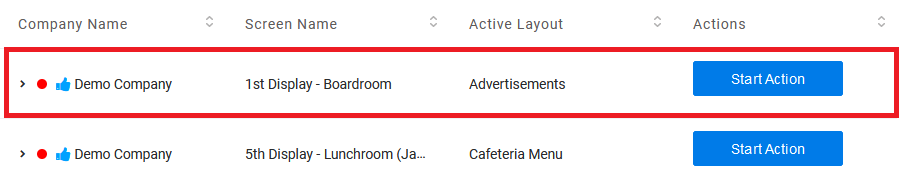
- Click on Remove Mirroring on your desired Device
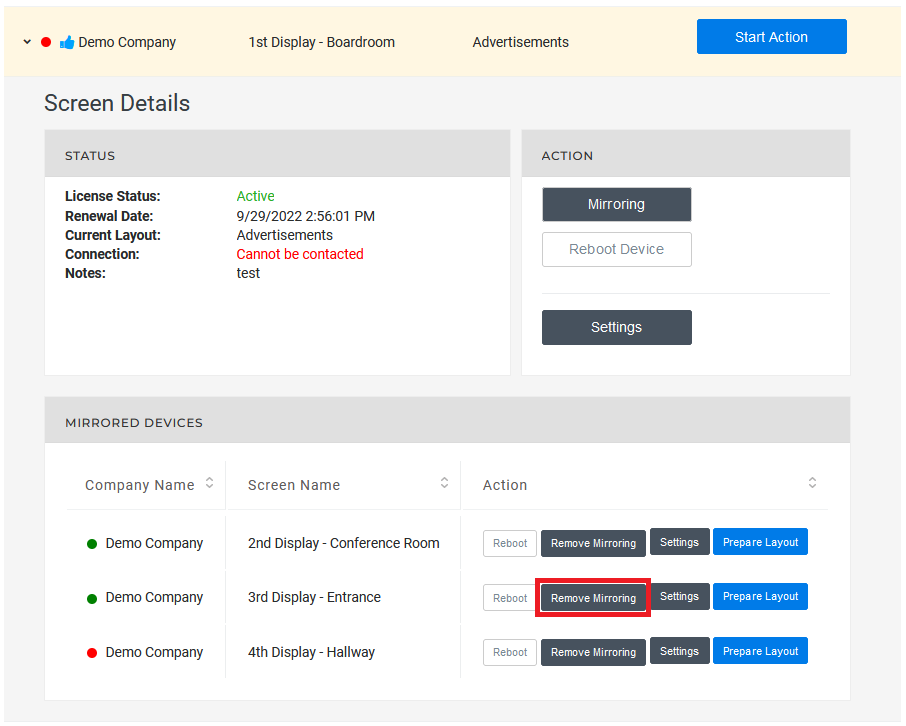
- The Mirroring has now been Removed from that Device
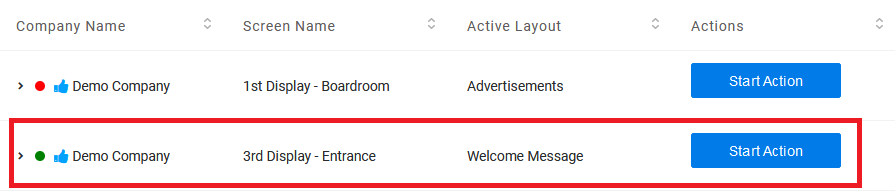
Prepare a Layout and Remove the Mirroring (from the License List)
For these instructions, the user can search for a Mirrored Device from their entire License List. This will allow users to Prepare and Display a unique Layout on a previously Mirrored Device. Once the device mirroring is removed, it will download the Prepared Layout.
Prepare a Layout (From the License List)
- Navigate to your NexSigns Licenses
- Select Show Mirrored Licenses
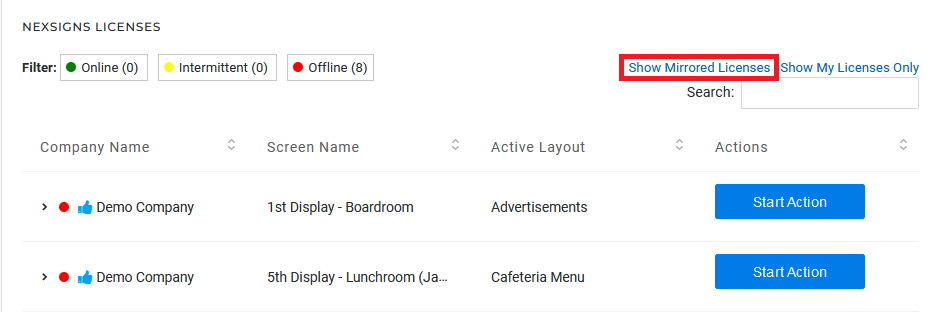
- Type in the Search Keyword (if necessary)
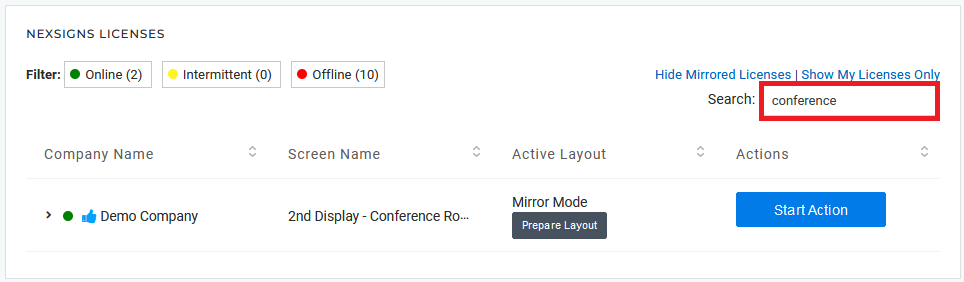
- Click on Prepare Layout on your desired Device
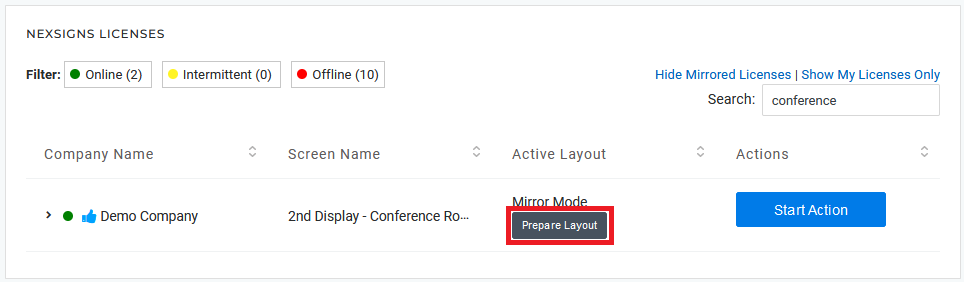
Complete the Desired Updates
Helpful Links Create and Publish a Multimedia Playlist Edit and Publish a Multimedia Playlist Create and Publish a NexSigns Template Edit and Publish a NexSigns Template 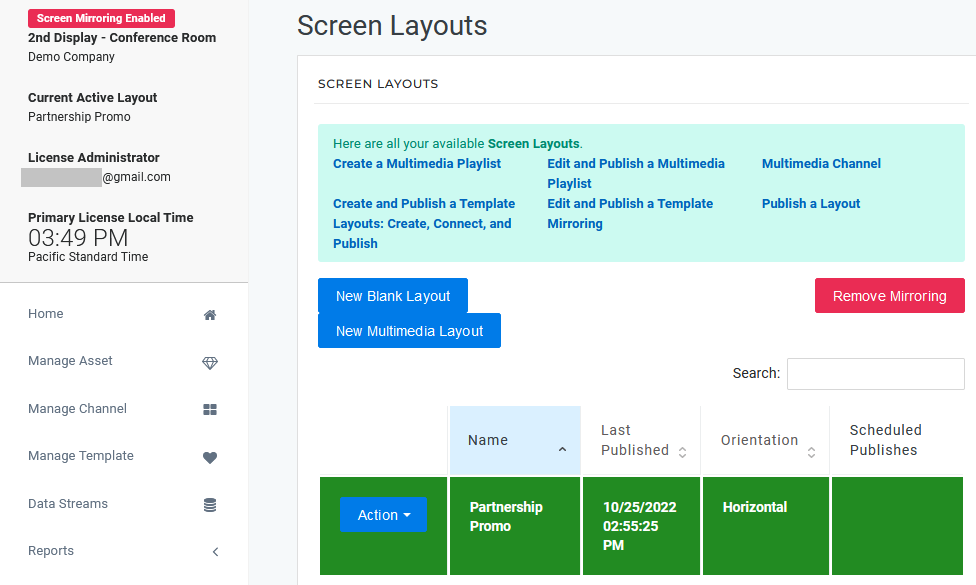
- Publish the Prepared Layout
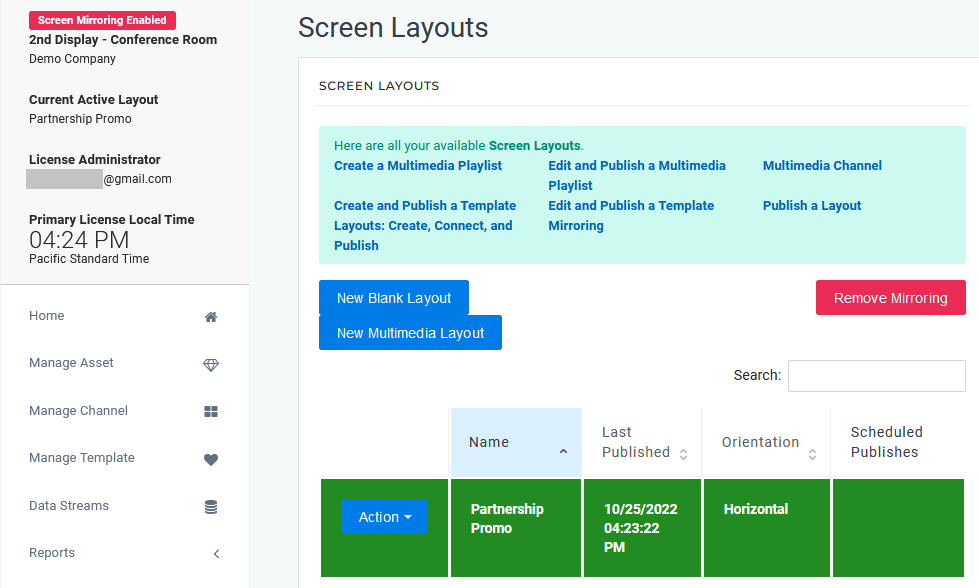
Remove the Mirroring on a Device (from the License List)
Once the device mirroring is removed, it will download the Prepared Layout.
- Navigate to your NexSigns Licenses
- Select Show Mirrored Licenses
- Type in the Search Keyword (if necessary)
- Select the desired Device that you would like to Remove the Mirroring by clicking on any blank space in the data row
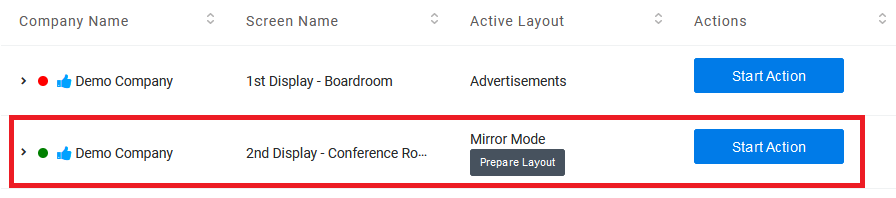
- Click on Remove Mirroring
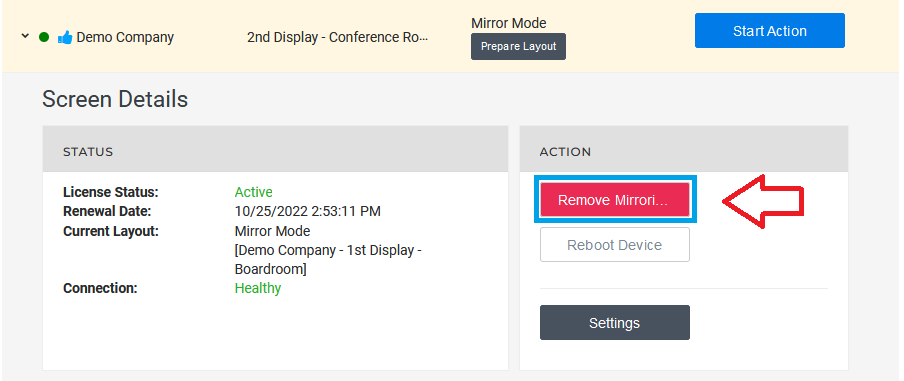
- The Mirroring has now been Removed from that Device

Applies to
OnePass 3.1.x, NexSigns 2.x, NexSigns 3.x
Related articles