Asset Library / Asset Manager
- James Yeoh
Owned by James Yeoh
Last updated: Feb 28, 2024
All Assets (Images / Videos) uploaded to NexSigns will be stored on the license owner's Asset Library on OnePass. They will be shared with all users with permissions to access the the owner's OnePass account.
Topics Covered
Login to OnePass and navigate to your Asset Library / Asset Manager
- Login to OnePass - (For more information, see How to access OnePass)
- Click on Application then select NexSigns
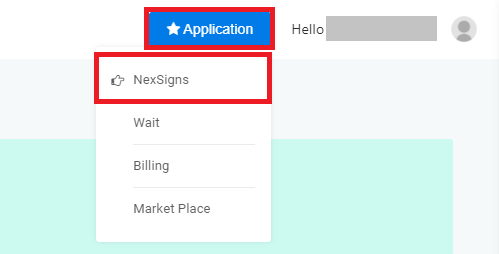
- Select your desired Product License and click on Start Action

- Select Manage Asset located in the left menu
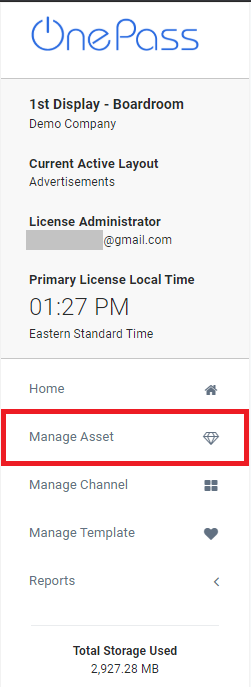
- You have successfully navigated to your Asset Library / Asset Manager page.
Upload New Assets to the Asset Library
see Upload Assets
You can upload a new Asset and add it automatically to the playlist directly on a Multimedia Channel.
Rename an Asset / Modify the Description
- Navigate to your Asset Library / Asset Manager
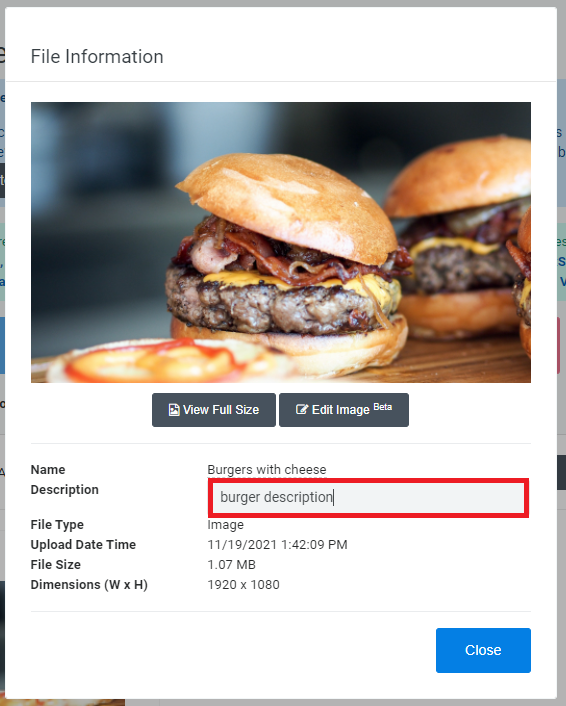
- Click on the desired Asset
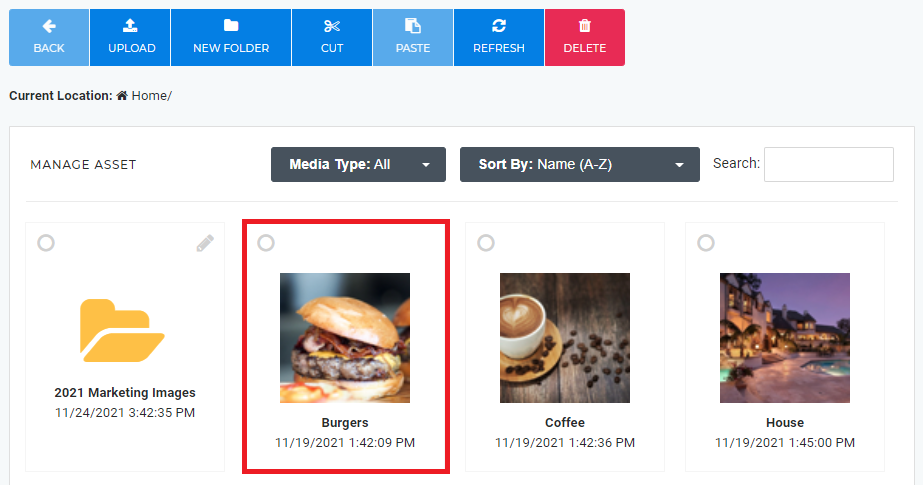
- Click on the Name or Description text box and modify it respectively
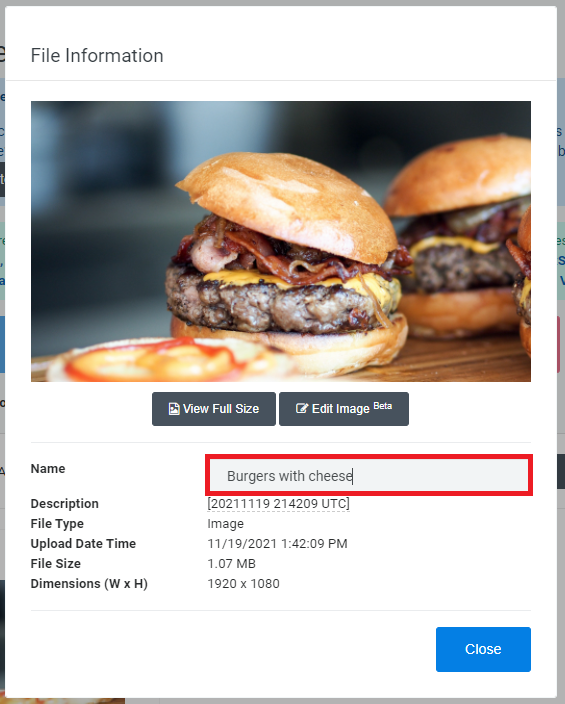
- Click on Close
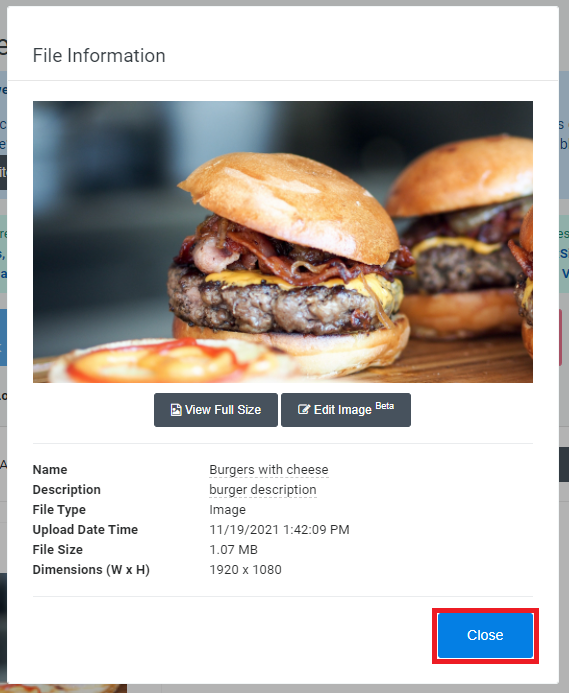
- You have successfully Renamed / Modified the Description of an Asset
Edit Images
see Edit Images with the NexSigns Image Editor
Create a Folder
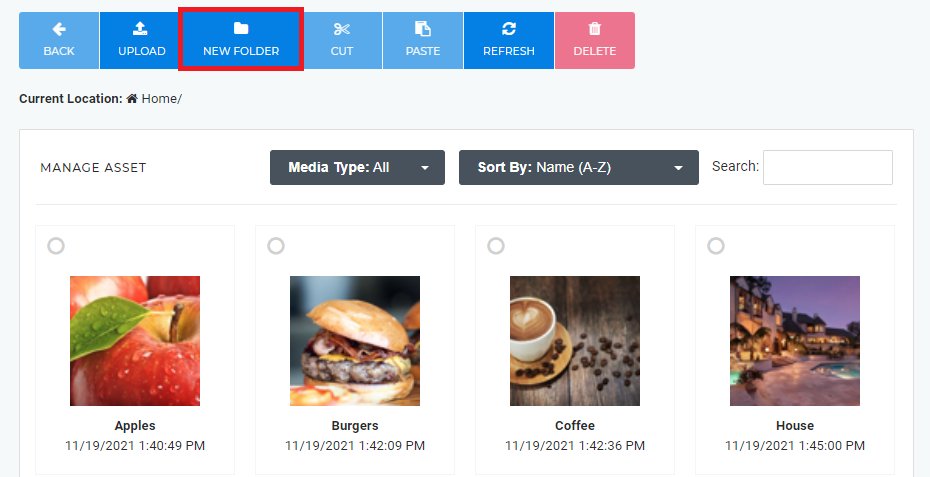
- Navigate to your Asset Library / Asset Manager
- Click on New Folder
- Type in a Folder Name
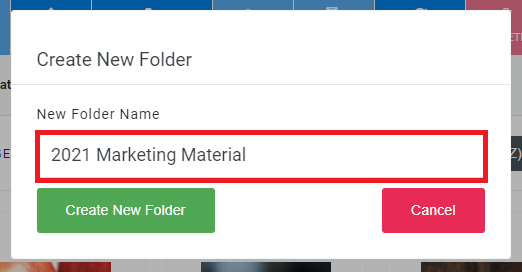
- Click on Create New Folder
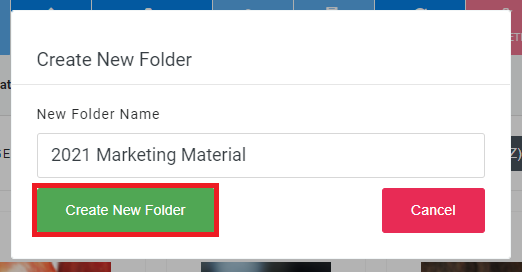
- You have successfully Created a New Folder
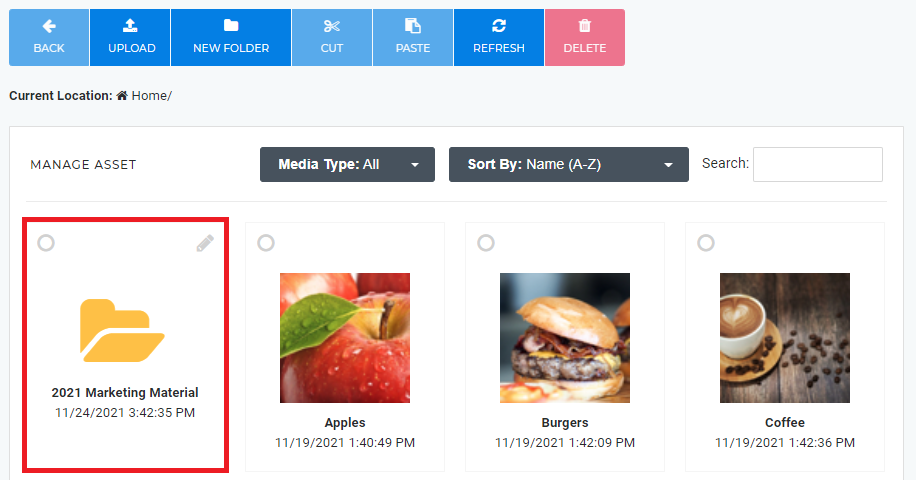
Rename a Folder
- Navigate to your Asset Library / Asset Manager
- Find the desired folder, and click on the Pencil / Edit Icon
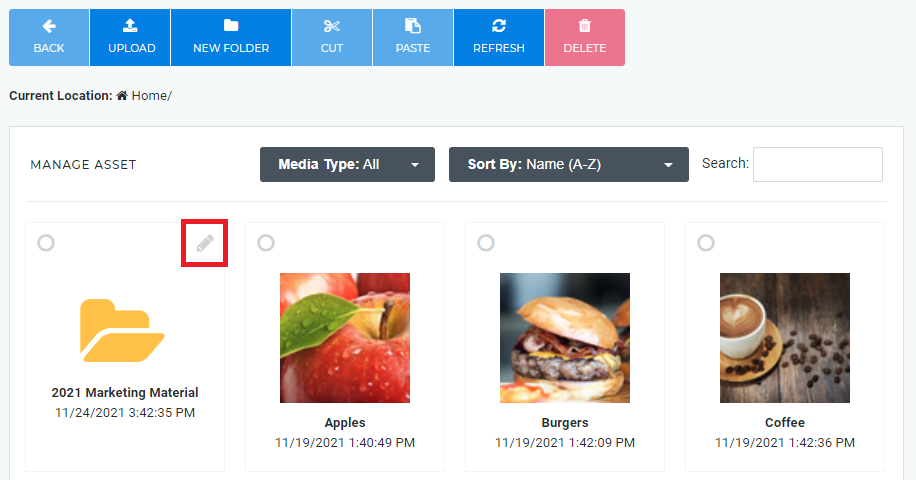
- Edit the Folder Name
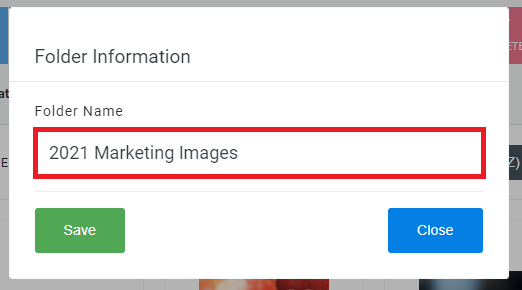
- Click on Save
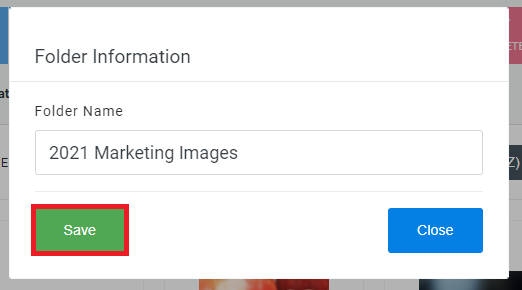
- You have successfully Renamed a Folder
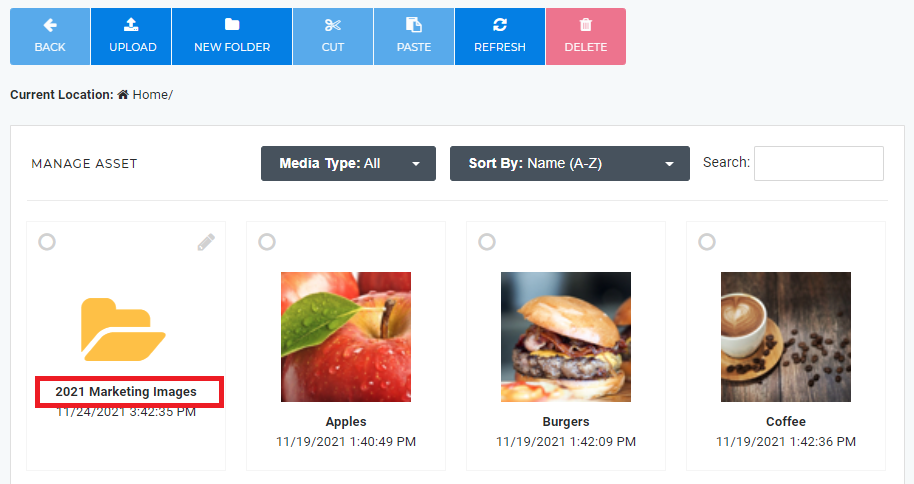
Move Assets and Folders (Cut and Paste)
- Navigate to your Asset Library / Asset Manager
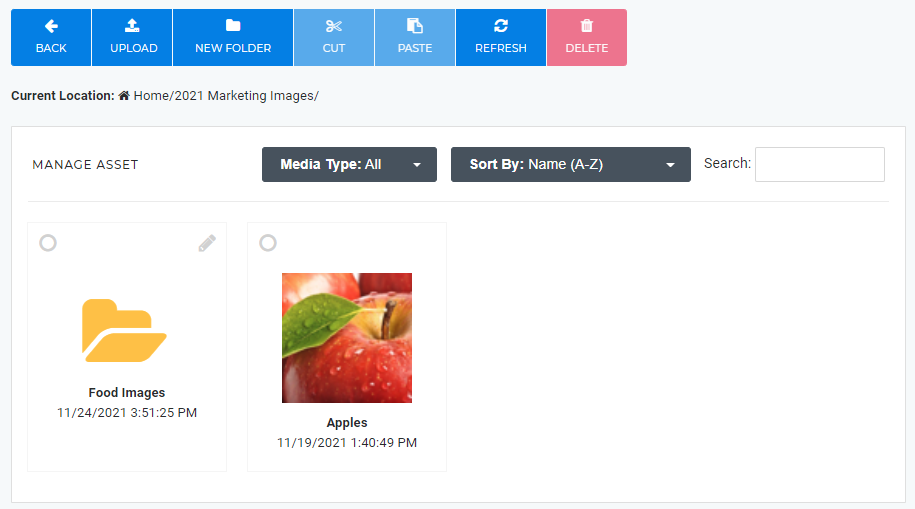
- Select the desired Assets (Images / Videos) and Folders by clicking on the Radio Buttons
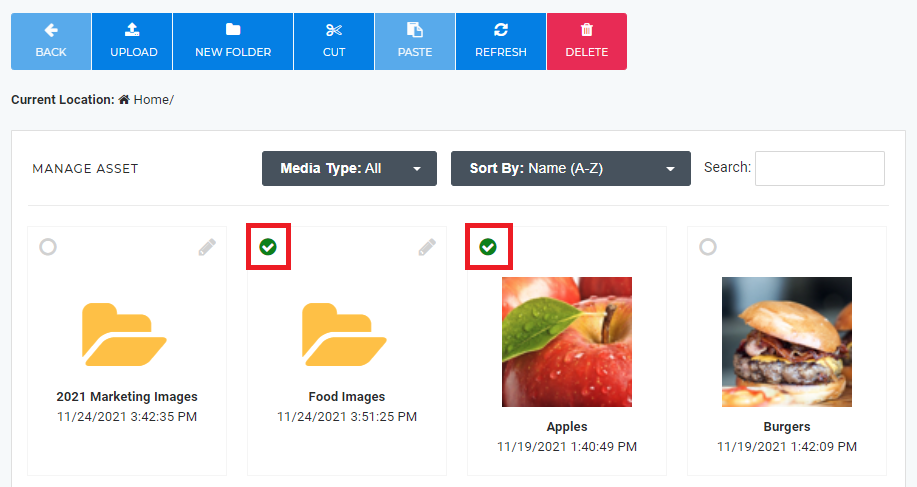
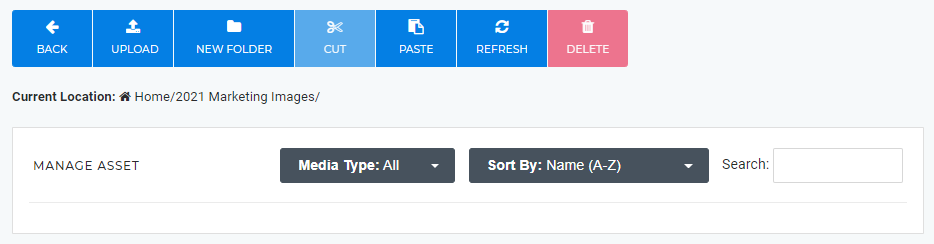
- Click on the Cut button in the menu bar
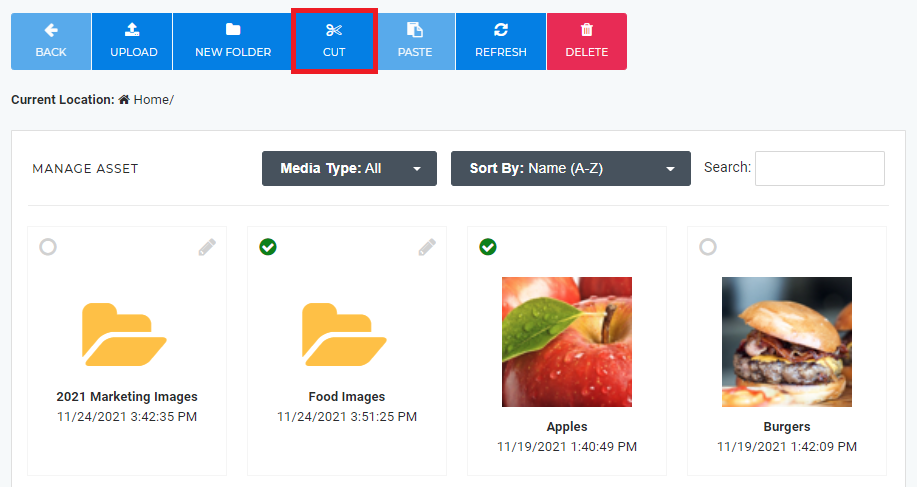
- Navigate to the desired Destination Folder and click on the Paste button
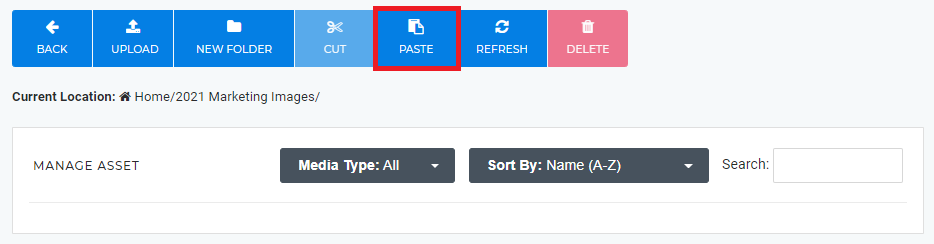
- You have successfully Moved Asset(s) and Folder(s)
Delete Assets and Folders
Important Warning
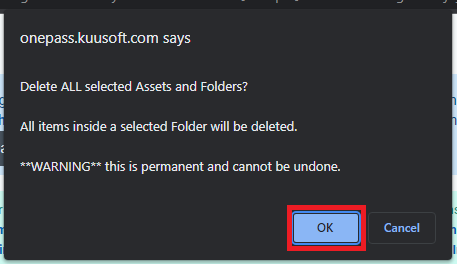
All items inside a selected folder will be deleted.
Deleting Assets (Images / Videos) and Folders is permanent and cannot be undone.
- Navigate to your Asset Library / Asset Manager
- Select the desired Assets (Images / Videos) and Folders by clicking on the Radio Buttons
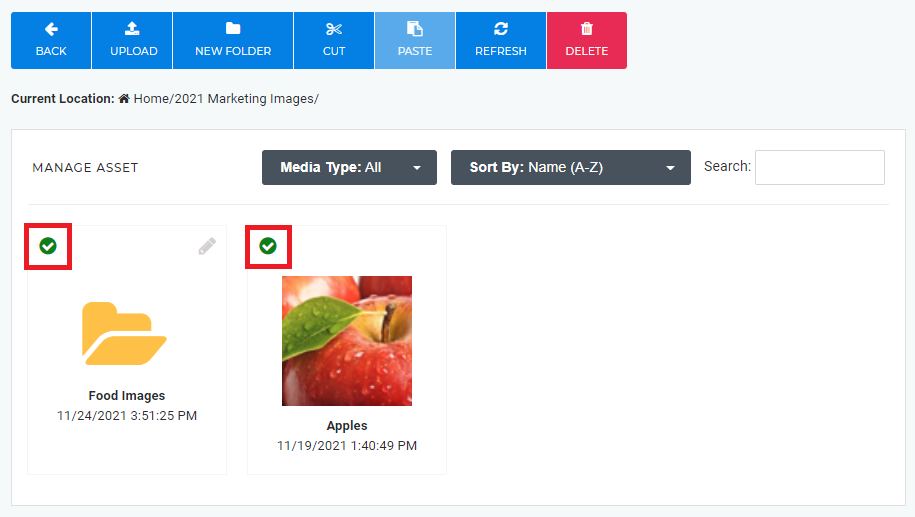
- Click on the Delete button in the menu bar
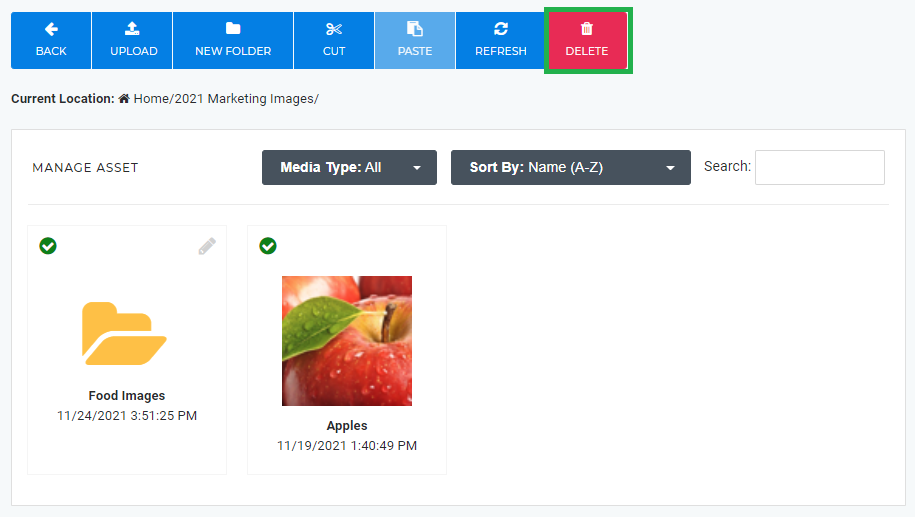
- Review and confirm to delete the selected Assets (Images / Videos) and Folders and click on the OK button
- You have successfully Deleted Asset(s) and Folder(s)
Related articles
, multiple selections available, Use left or right arrow keys to navigate selected items