Multimedia Channel / Multimedia Playlist
- Geoffry Fang
- James Yeoh
Owned by Geoffry Fang
Last updated: Feb 28, 2024 by James Yeoh
You can quickly create a playlist of images and videos (aka Assets (Images / Videos)), along with other media, using OnePass and your NexSigns Device. In this article, we will explore how to configure and use a Multimedia Channel.
Topics Covered
Channels
For more information about different Channels, view this article.
Optional - Enable Auto-Update for a Multimedia Playlist
Tutorial - Create and Publish a Multimedia Playlist
Tutorial - Edit and Publish a Multimedia Playlist
Login to OnePass and navigate to your Screen Layouts
- Login to OnePass - (For more information, see How to access OnePass)
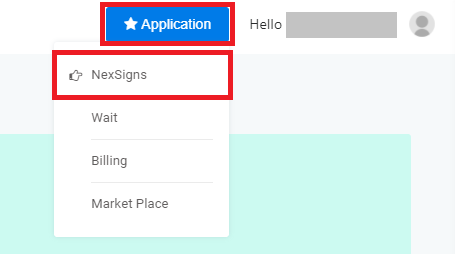
- Click on Application then select NexSigns
- Click on Start Action on your desired Product License

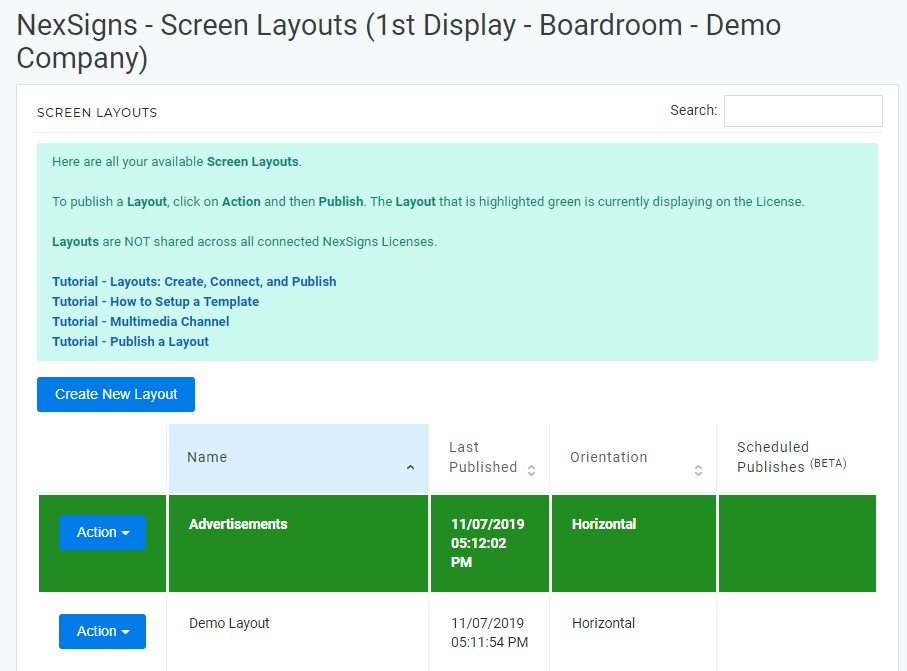
- You have successfully navigated to your Screen Layouts.
Create a new Multimedia Channel
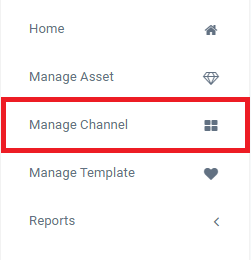
- Select Manage Channel located in the left menu
- Click on Create New Channel
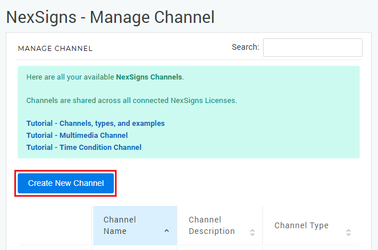
- Enter a Channel Name, Description and select Multimedia in the Channel Type drop-down menu
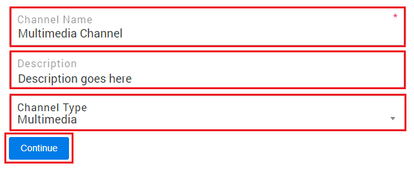
- Select Continue to finish creating a new Multimedia Channel
Add Media to a Multimedia Channel
- To add media to the Multimedia Channel, click on either the + Add Video, + Add Image, + Add Multimedia Channel, + Add Connection Token, + Add Template, or + Upload New Asset
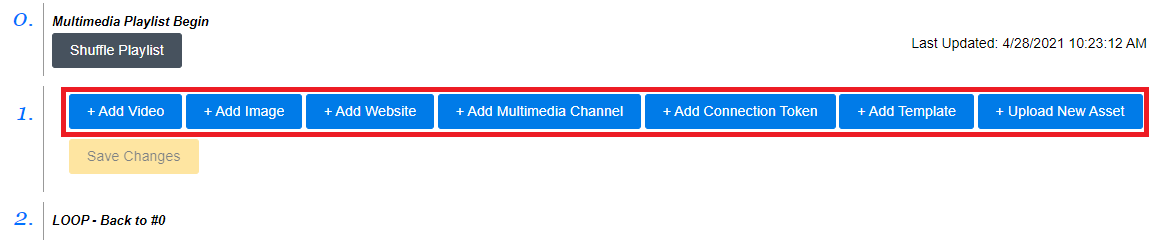
- Select your desired Media
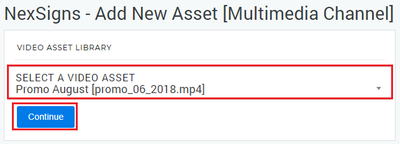
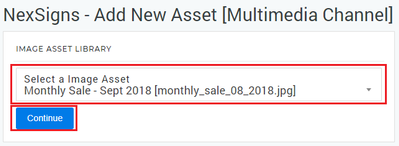
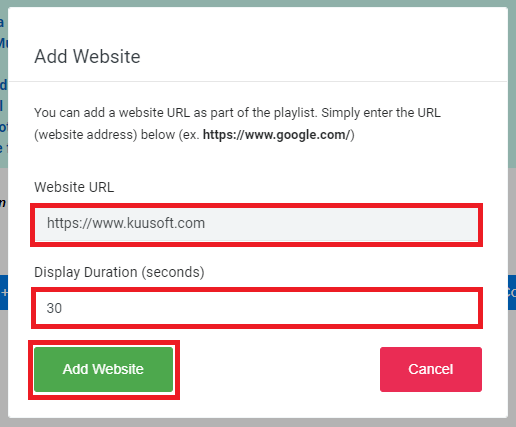
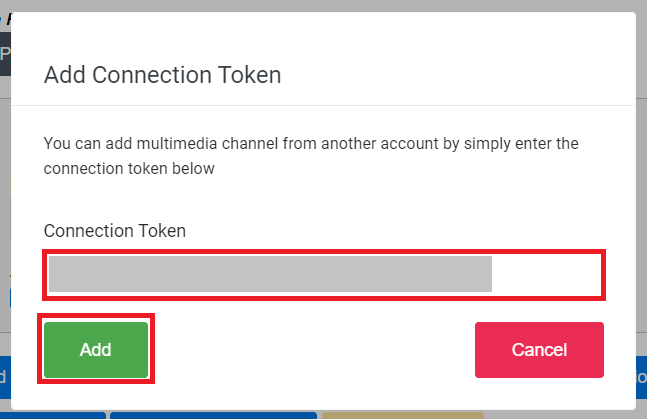
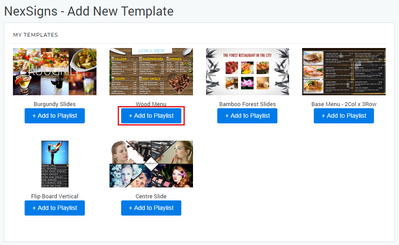
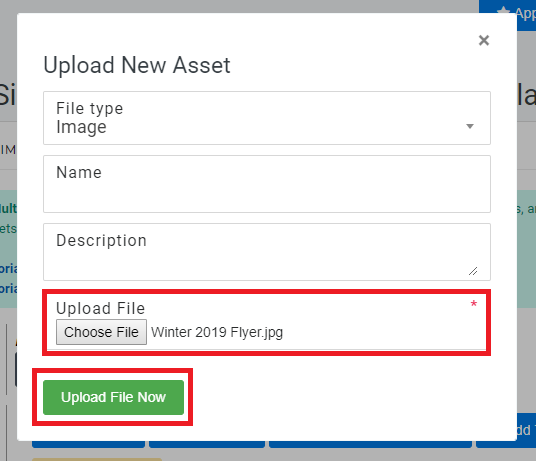
- You have successfully added media to your Multimedia Playlist
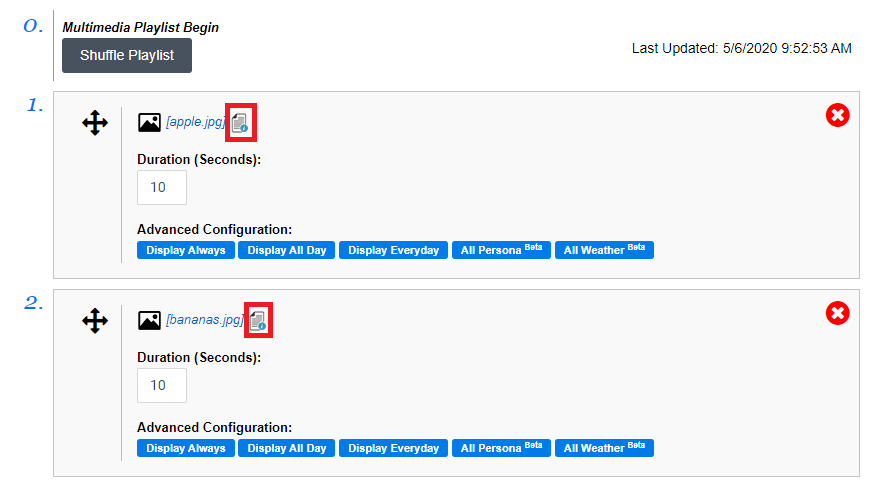
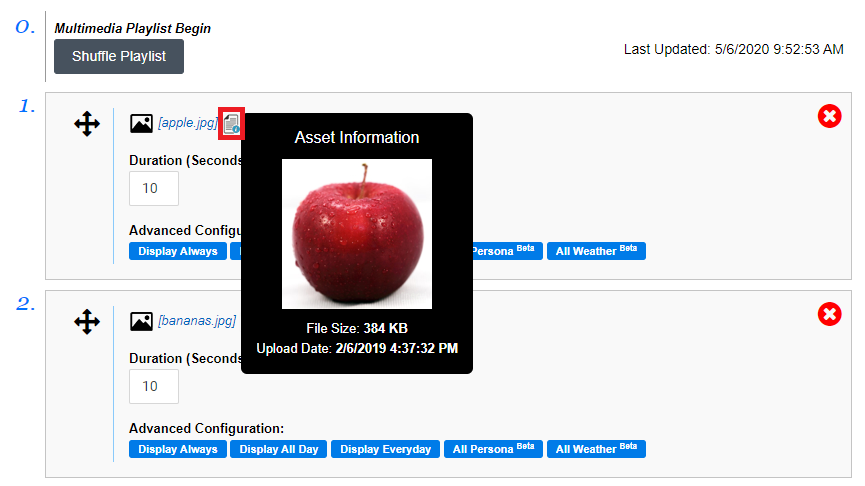
Preview an Asset - quick details and preview
- Locate your desired Asset and mouse over on the Preview icon
Preview an Asset - open in a new Tab
- Locate your desired Asset and click on the name
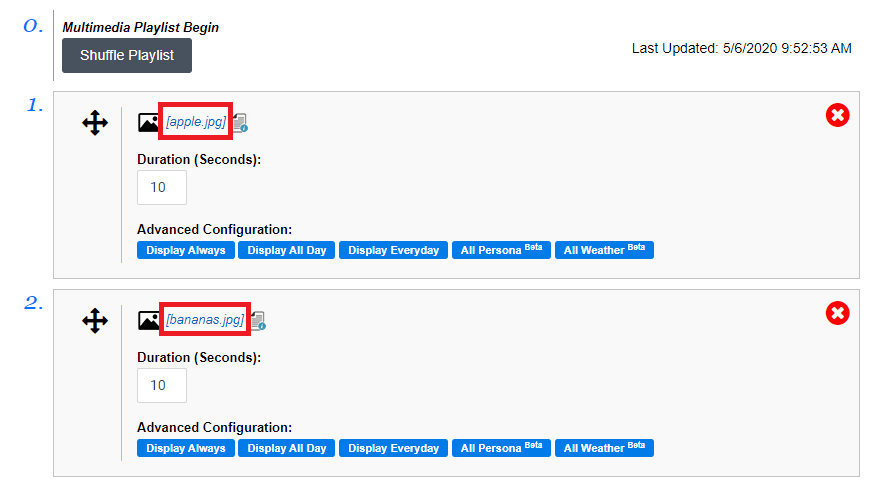
- It will display your Asset on a New Tab in your Web Browser.
Modify the duration of time that an Image Asset or Website is displayed
- Locate your desired Asset and type in a new duration in the Duration (Seconds) text box (ex. 15 seconds)
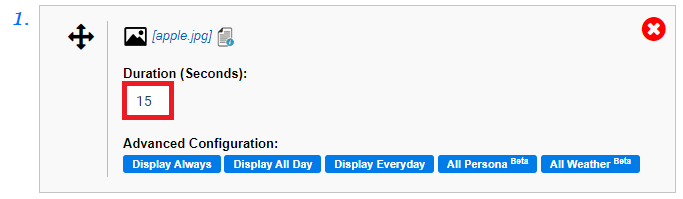
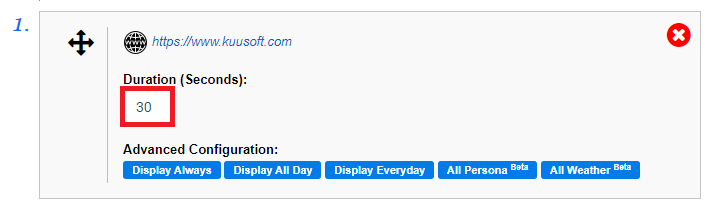
- Click away from the Duration (Seconds) text box and it will be saved automatically
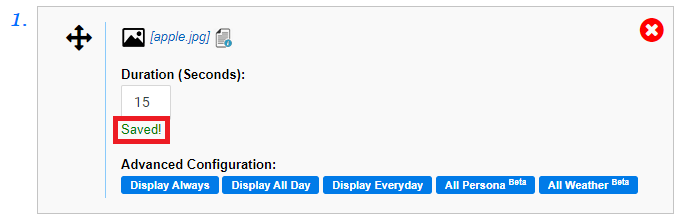
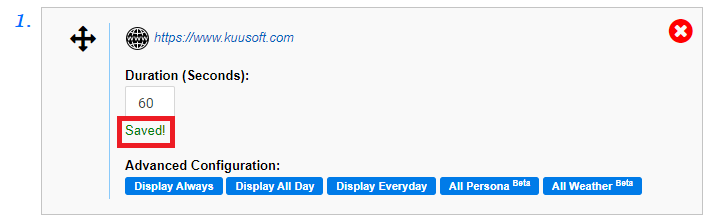
- You will see a green Saved! message when it has been changed.
Modify the order of a Multimedia playlist
- Locate your desired Asset and use Drag and Drop to change the order
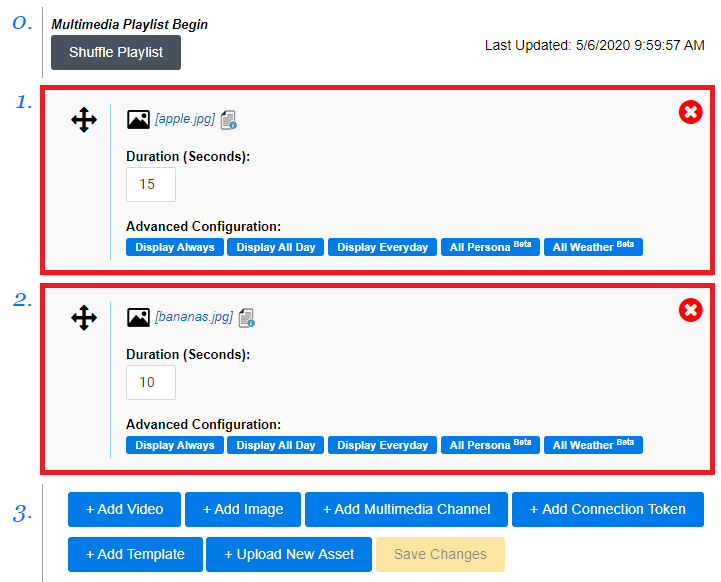
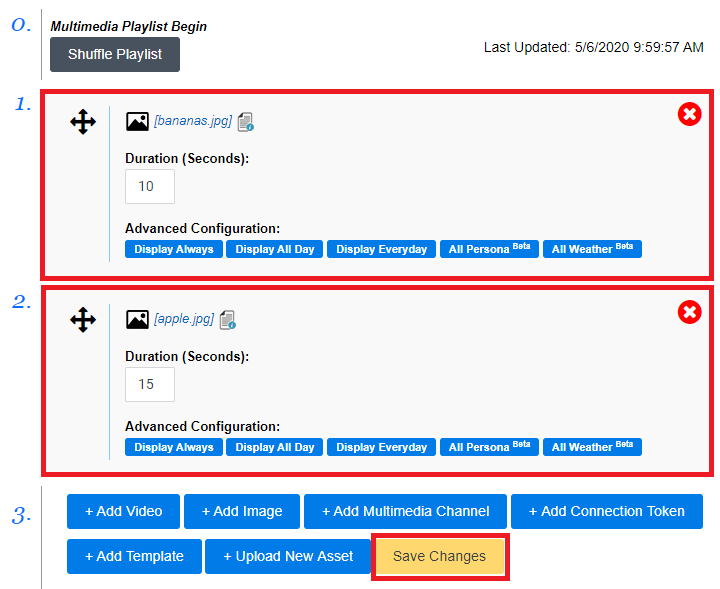
- Select Save Changes
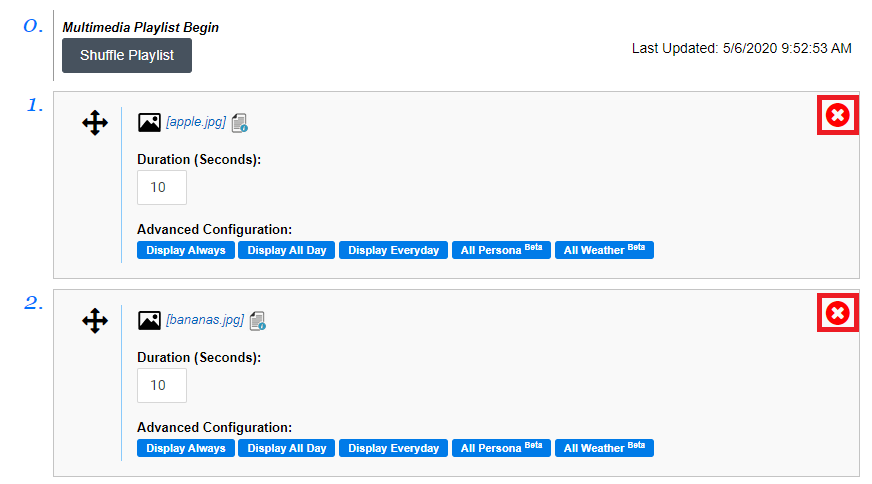
Remove an Asset from a Multimedia playlist
- Locate your desired Asset and click on the Red X Button
Set the Date, Day, and Time of the Day to display Media
Important Info
Default time is to Pacific Time (PT)
Tutorial - Change the Time Zone Setting (Nano-PC Device)
Tutorial - Change the Time Zone Setting (OnePass Account)
Set a Date Range for an Asset in a Multimedia playlist
- Locate your desired Asset and select Display Always
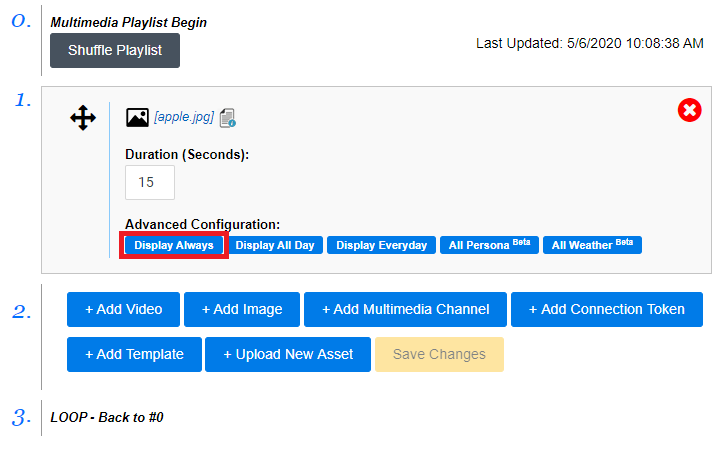
- Select the desired Date Range and click on Save
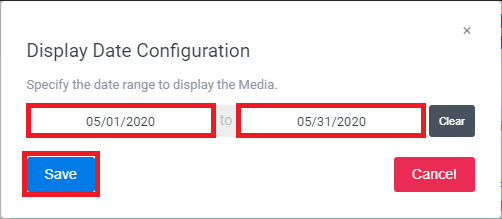
- You are done. This media will only display during the entered Date Range
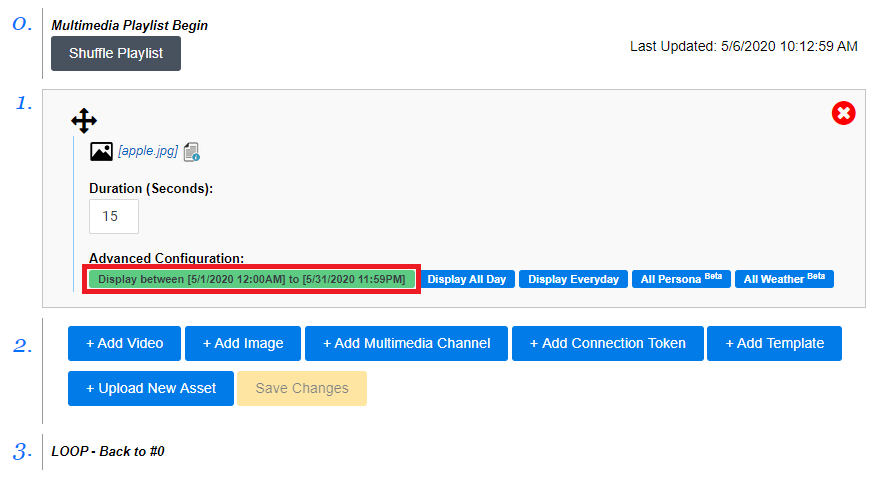
Select the Days of the Week for an Asset in a Multimedia playlist
- Locate your desired Asset and select Display Everyday
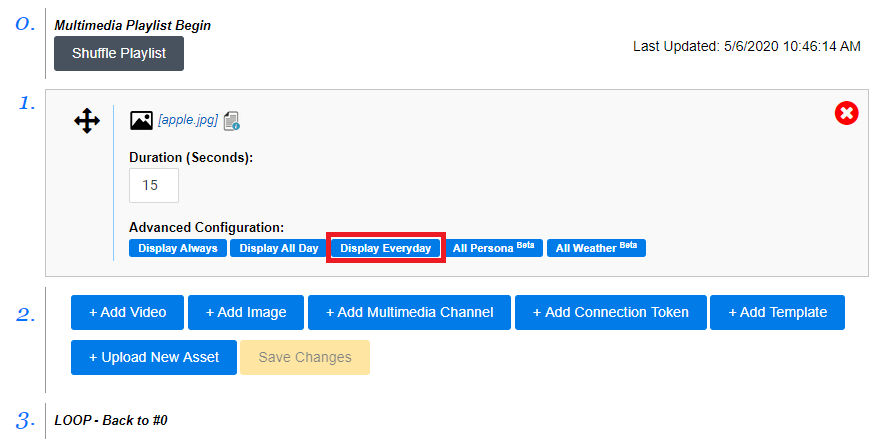
- Select the desired Days of the Week and click on Save
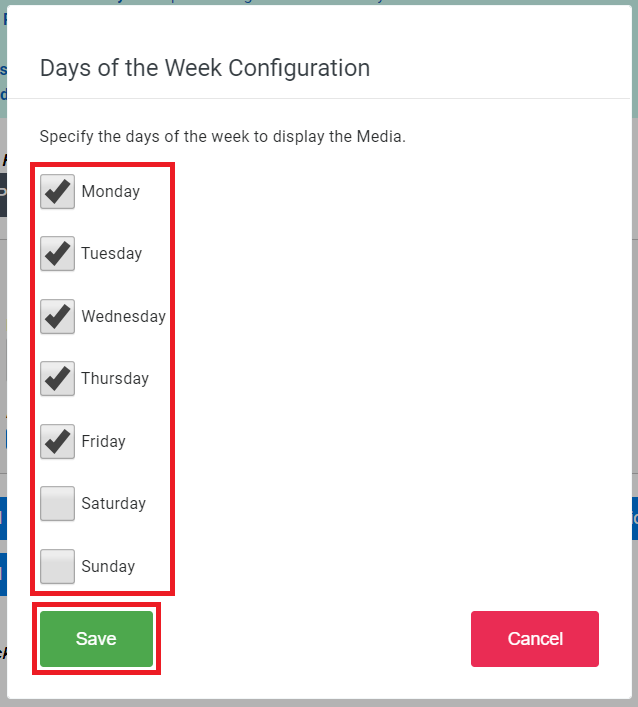
- You are done. This media will only display during the entered Days of the Week
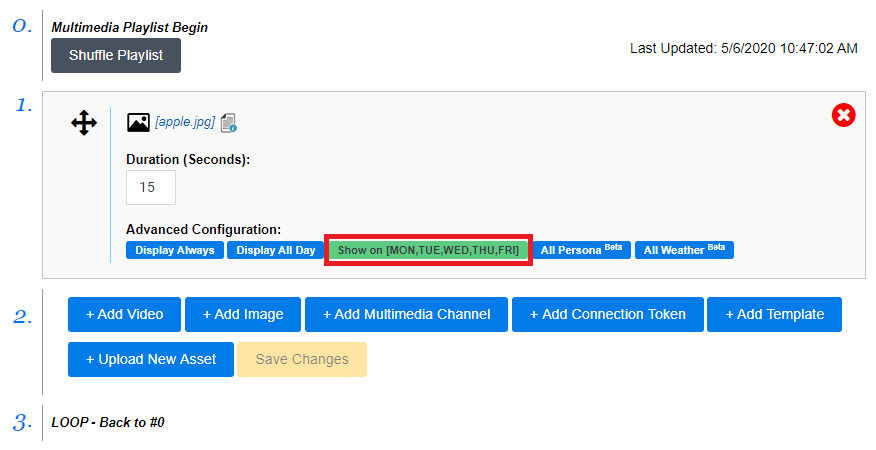
Select the Time of the Day for an Asset in a Multimedia playlist
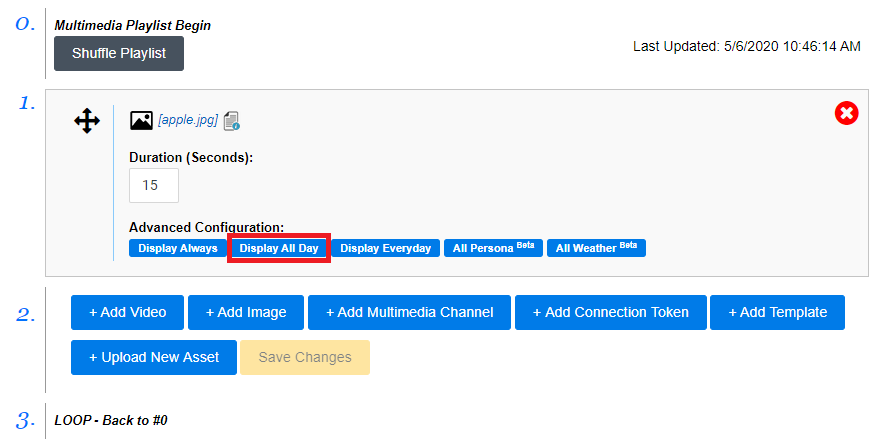
- Locate your desired Asset and select Display All Day
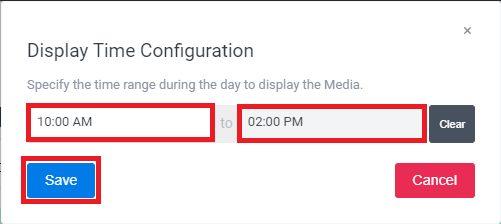
- Select the desired Time Range and click on Save
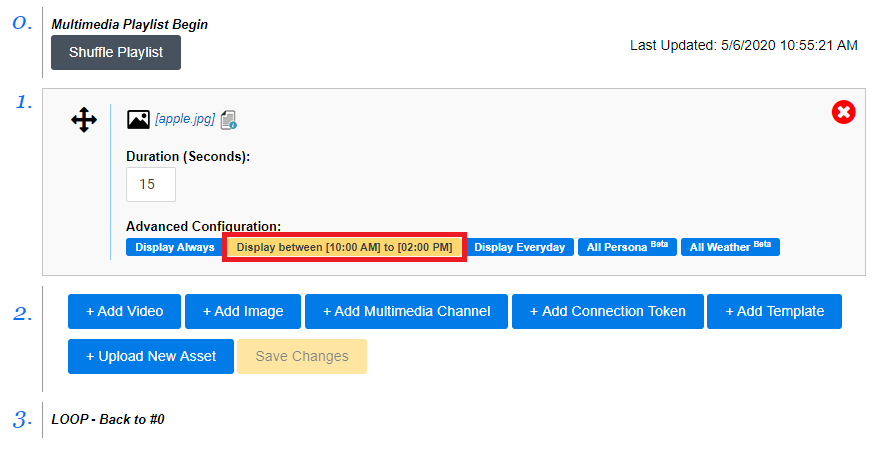
- You are done. This media will only display during the entered Time of the Day
Useful Tip
Set Persona Filters for an Asset in a Multimedia playlist
See this article for instructions on Using Persona Filters in a Multimedia Channel / Multimedia Playlist
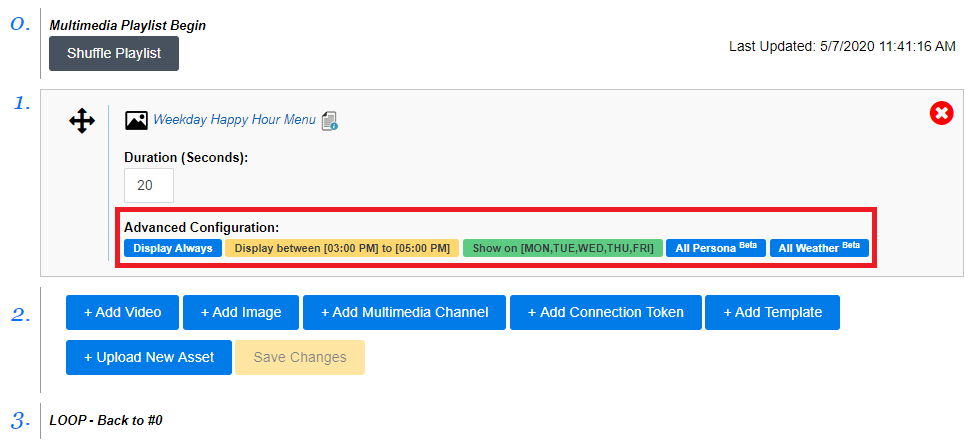
Example #1 - Weekday Happy Hour Menu from 3pm to 5pm
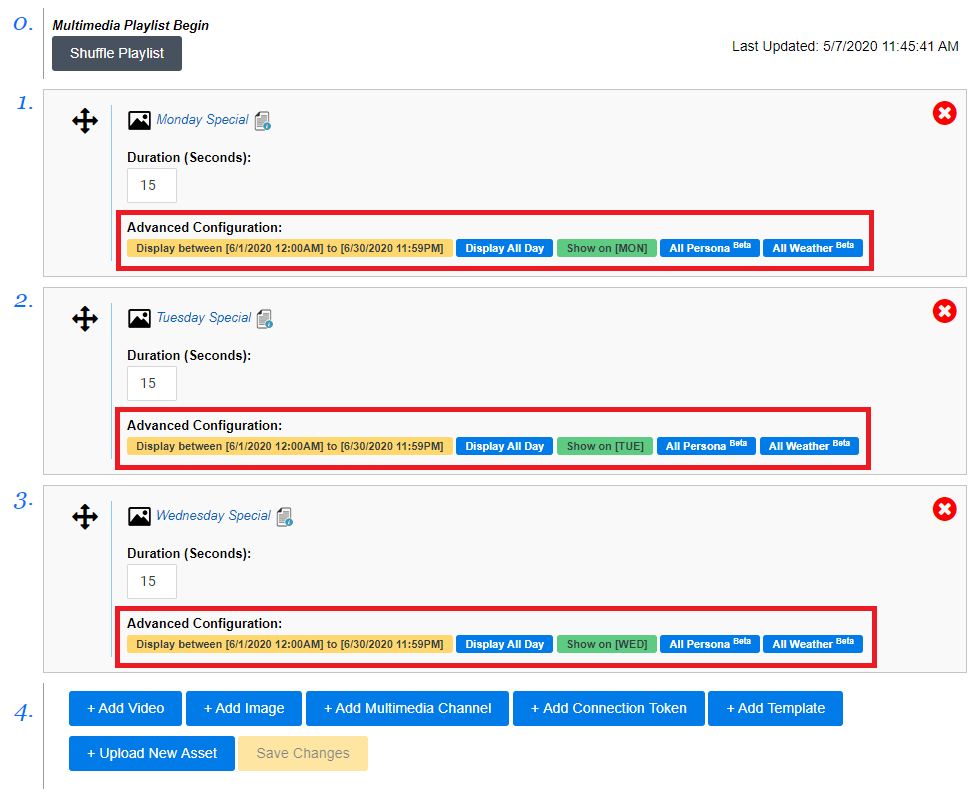
Example #2 - Daily Specials for June 2020
Applies to
OnePass 3.1.x, NexSigns 2.x, NexSigns 3.x
Related articles
, multiple selections available, Use left or right arrow keys to navigate selected items